

Start the clock
SetMAISTER_CRON_TOKEN on the web process. In production, call GET or POST /api/cron/tick from an external cron service with
X-Maister-Cron-Token: <token> or Authorization: Bearer <token>.
A single-host installation can use the in-process timer:
503.
Inspect global jobs
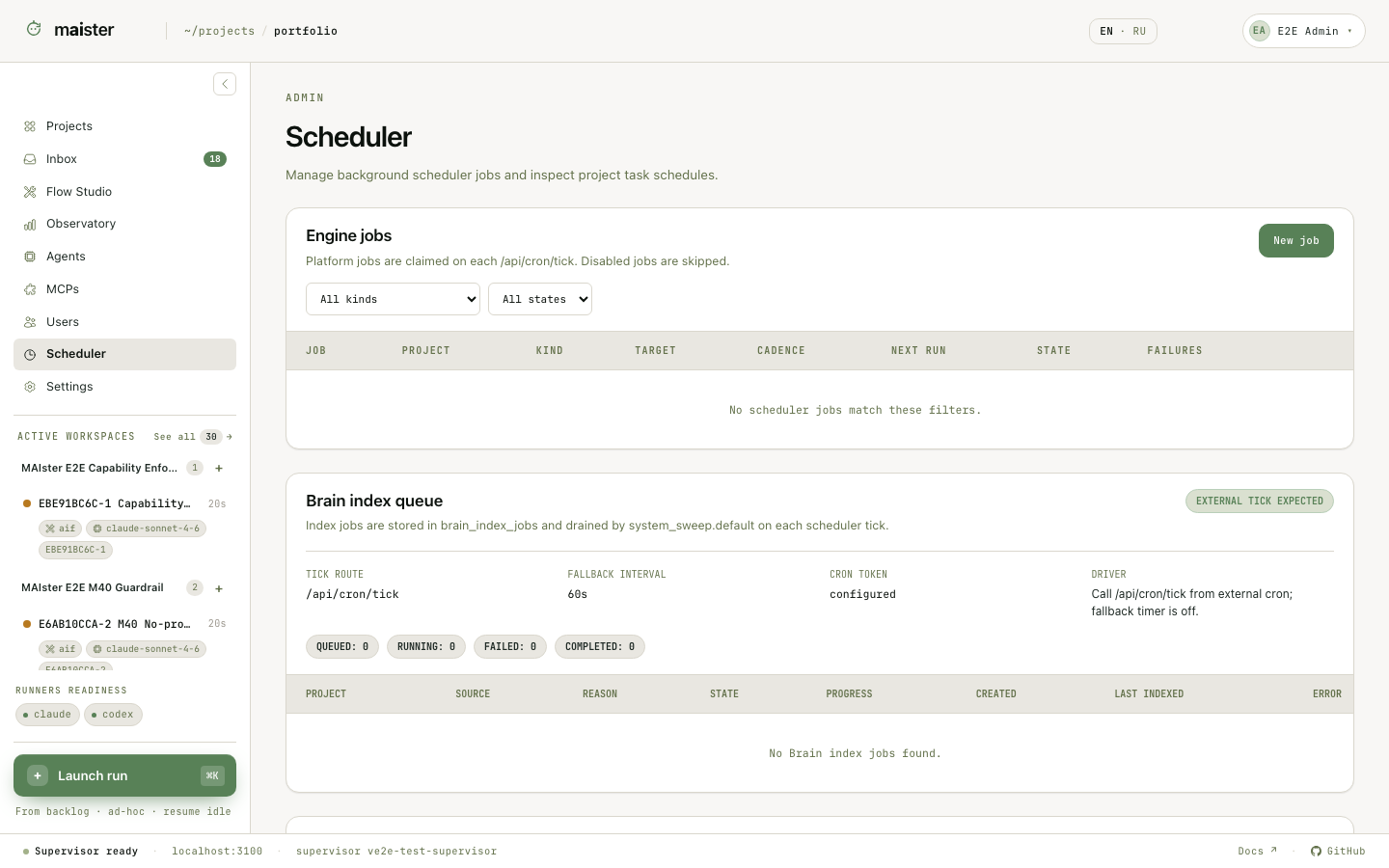 Open Scheduler as a global administrator. The table shows the job kind,
target summary, cadence, next run, enabled state, consecutive failures, and the
last attempt. The page also links task schedules and one-time launch intents
back to their projects.
The clock card identifies the active driver, interval, token configuration,
active ticks, and last tick outcome. Partial means at least one claimed job
failed or was skipped; Failed means the tick itself failed. Clock statistics
belong to the current web process and reset on restart, while job history is
retained. Check the dedicated maintenance and event-dispatch rows even when the
general job list is filtered.
The maintenance job’s execution diagnostics distinguish host event backlog,
processing backlog, blocked consumers, commands, and worker health. Missing
samples are reported as unavailable. Subscriber pause counters can increase
during normal catch-up; inspect progress and backlog before treating a pause
as a failed connection. See Execution hosts.
You can create two operator job types from this screen:
Open Scheduler as a global administrator. The table shows the job kind,
target summary, cadence, next run, enabled state, consecutive failures, and the
last attempt. The page also links task schedules and one-time launch intents
back to their projects.
The clock card identifies the active driver, interval, token configuration,
active ticks, and last tick outcome. Partial means at least one claimed job
failed or was skipped; Failed means the tick itself failed. Clock statistics
belong to the current web process and reset on restart, while job history is
retained. Check the dedicated maintenance and event-dispatch rows even when the
general job list is filtered.
The maintenance job’s execution diagnostics distinguish host event backlog,
processing backlog, blocked consumers, commands, and worker health. Missing
samples are reported as unavailable. Subscriber pause counters can increase
during normal catch-up; inspect progress and backlog before treating a pause
as a failed connection. See Execution hosts.
You can create two operator job types from this screen:
- Flow run targets a task and starts it with the selected branches and runner choices.
- Command performs an HTTP health request or a host ping.
Schedule project work
Project → Automations combines three kinds of future work:- A one-time task launch. Open the task launch form, choose Schedule, set local date, time, timezone, and DST handling. MAIster stores an intent and creates the Run only after a scheduler tick claims it.
- A recurring task schedule with cron expression, timezone, catch-up behavior, branches, Flow, and runner selection.
- Platform-agent cron or event bindings. The page shows them and links to Project → Agents, which owns their settings.
Diagnose a missed launch
- Open Project → Automations and check the intent or binding state, next time, timezone, and latest safe outcome.
- Confirm that the task has no blocking relation and that its Flow, runners, package trust, and MCP bindings are ready.
- For an agent trigger, edit the attachment in Project → Agents and check that both the agent and binding are enabled.
- Open the global Scheduler. Check the dispatcher job, tick recency, failure count, and last error code.